Manage Tools
The Manage Tools page provides a comprehensive interface for administrators to review, filter, and manage all tools in the Dirly directory. It offers search, status filtering, bulk actions, and detailed controls for each tool.
Access this page by navigating to /admin/tools after logging in with an account that has the admin role.
Overview
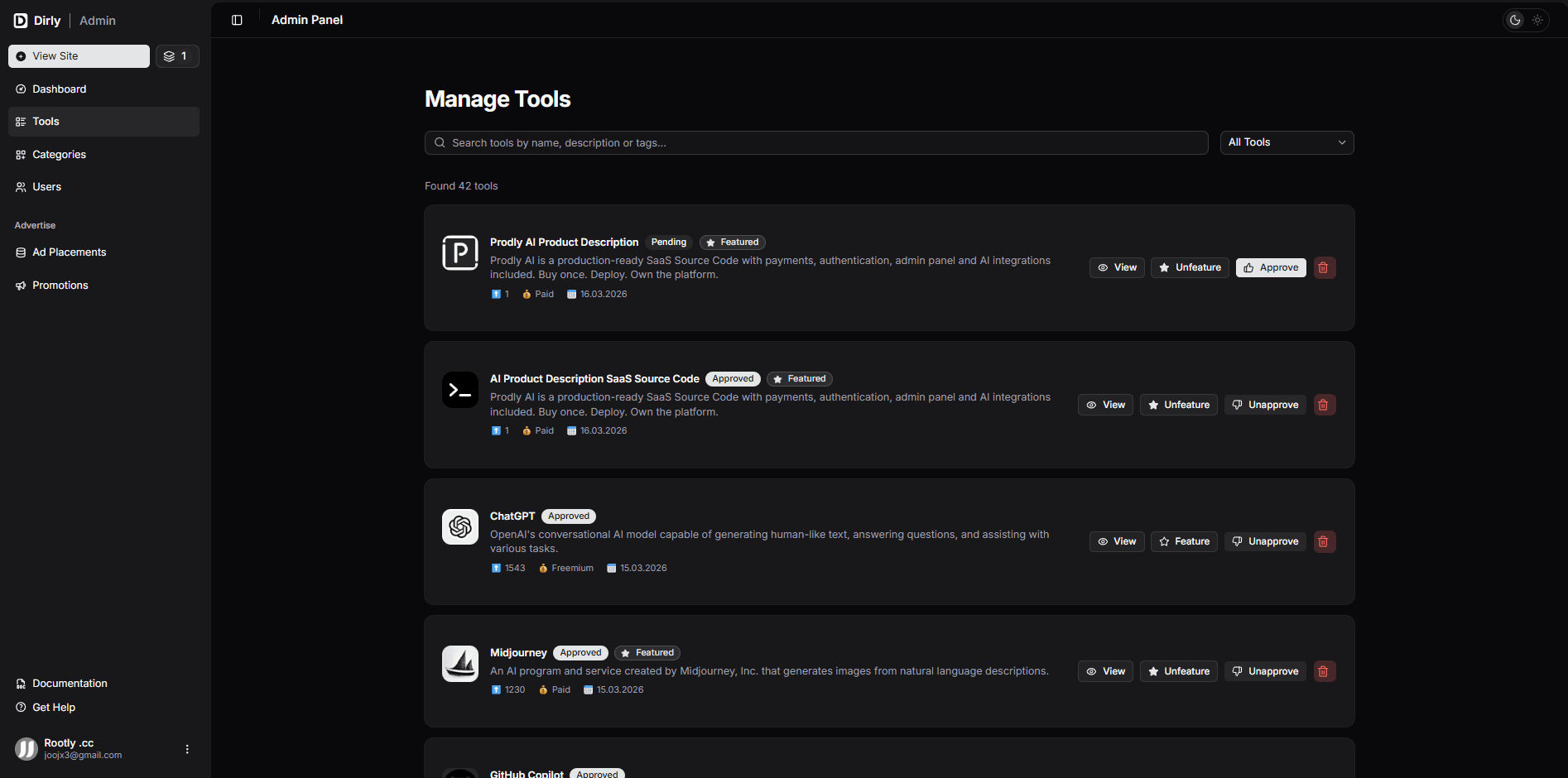
The Manage Tools page is designed for efficient moderation of the entire tool database. Key features include:
- Real‑time data – All tools are loaded live from Convex and update automatically.
- Search – Filter tools by name, description, or tags (with debounced input).
- Status filter – Show all, pending, or approved tools.
- Pagination – Tools are displayed in pages of 10 for easier navigation.
- Tool cards – Each tool shows its logo, name, status, description, upvotes, pricing, submission date, and action buttons.
- Management actions – Approve/unapprove, feature/unfeature, delete, and view details.
- Email notifications – Approvals and unapprovals trigger emails to the submitter (if Resend is configured).
Page Components
Search Bar
A search input with a magnifying glass icon allows admins to quickly find tools by name, description, or tags. The search is debounced (500 ms) to reduce load, and the results are automatically updated as you type.
Status Filter
A dropdown lets you filter tools by their approval status:
| Option | Description |
|---|---|
| All Tools | Displays every tool regardless of approval status. |
| Pending | Only tools that have not yet been approved. |
| Approved | Only tools that have been approved. |
The filter resets the current page to the first page.
Tool Cards
Each tool is presented as a card containing:
- Logo – If available, the tool’s logo image; otherwise a placeholder with the first letter.
- Name – The tool’s title.
- Status badge – “Approved” (green) or “Pending” (grey).
- Featured badge – Shown if the tool is marked as featured (star icon).
- Description – Truncated to two lines.
- Metadata – Upvote count, pricing model (Free, Freemium, Paid), and submission date.
- Action buttons (from left to right):
- View – Opens the detailed tool page (
/admin/tools/:id). - Feature / Unfeature – Toggles the tool’s featured status. Featured tools appear prominently on the site.
- Approve / Unapprove – Changes the approval status. Approving a tool publishes it; unapproving hides it. Emails are sent to the submitter accordingly.
- Delete – Permanently removes the tool from the database (irreversible, requires confirmation).
- View – Opens the detailed tool page (
Deleting a tool is irreversible. All related data (reviews, bookmarks) are also removed. Use with caution.
Pagination
When more than 10 tools match the current filter, pagination controls appear below the list. Admins can navigate between pages, and ellipsis indicators show gaps when many pages exist. The page resets to the first page whenever the search or filter changes.
Email Notifications
The system sends email notifications when a tool is approved or unapproved, provided that:
- Resend is configured (see Environment Variables).
- The user has not disabled review status updates in their notification preferences.
The emails include the tool name and, for approvals, a direct link to the tool’s page. For unapprovals, a reason (or default message) is included.
Email sending is handled via the internal API route /api/send-email. If you wish to customize email templates, see the app/api/send-email/route.ts file.
Technical Details
- Data source: Convex query –
api.tools.getAllToolswith optionalstatusparameter. - Mutations:
api.tools.toggleApproval– Switches approval status and triggers email (if configured).api.tools.toggleFeatured– Toggles the featured flag.api.tools.rejectTool– Used for deletion (withsendEmail: false).
- Search: Client‑side filtering using a debounced input. For very large databases, you may want to implement server‑side search later, but the current implementation works well for typical directory sizes.
- Pagination: Implemented on the client side after filtering. The page resets when search or filter changes.
- Access control: Only users with
role === "admin"in theuserstable can access this page.
Usage Tips
- Use the search bar to quickly find a specific tool by its name.
- Use the status filter to focus on pending submissions for review.
- When a tool is submitted, it appears in the pending list. Review it, then either approve or reject it.
- If you need to temporarily hide an approved tool (e.g., due to inappropriate content), use Unapprove instead of deleting.
- Featured tools can be managed directly from the card – no need to visit the detail page.
- For bulk operations, you may consider extending the page with checkboxes; for now, each tool is managed individually.
Conclusion
The Manage Tools page gives admins full control over all tools in the directory. With search, filtering, and quick actions, you can efficiently moderate submissions and maintain a high‑quality tool list. Combined with email notifications, submitters stay informed about the status of their tools.
For advanced management (e.g., reviewing ad campaigns, managing users), use the other sections of the admin panel.