Admin Dashboard
The Admin Dashboard is the central hub for managing Dirly – your AI tools directory. It provides an overview of platform metrics, a queue for moderating pending tool submissions, and tools for seeding sample data.
Admins can access this page by navigating to /admin after logging in with an account that has the admin role (see Admin setup for instructions on granting admin privileges).
Overview
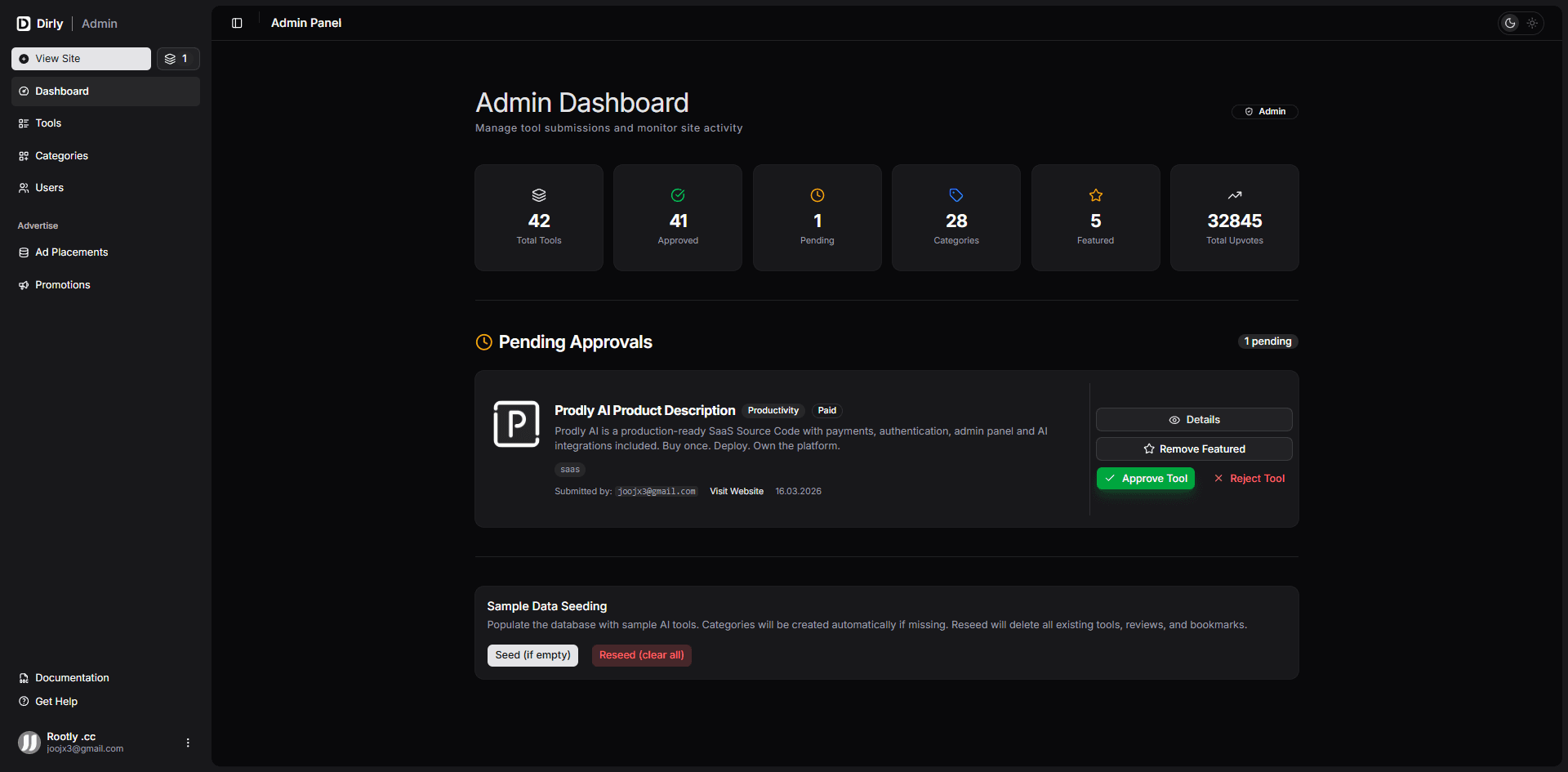
The dashboard is built with real‑time data from Convex and includes:
- Statistic cards – Total tools, approved count, pending count, categories, featured tools, total upvotes.
- Pending approvals – A list of tools submitted by users waiting for review, with actions to approve, reject, or feature them.
- Sample data seeding – Utilities to populate the database with example tools (useful for testing and demonstration).
- Pagination – When many tools are pending, the list is paginated (10 per page).
All data updates automatically through Convex subscriptions – no manual refresh needed.
Dashboard Components
Statistic Cards
Six cards at the top display key metrics:
| Statistic | Description |
|---|---|
| Total Tools | All tools in the database (including approved and pending). |
| Approved | Number of tools that have been reviewed and approved. |
| Pending | Tools awaiting moderation. |
| Categories | Number of distinct categories available (e.g., Writing, Image, Coding). |
| Featured | Tools marked as featured (appear prominently on the homepage). |
| Total Upvotes | Sum of all upvotes across tools. |
Each card uses a Lucide icon and color coding for quick recognition.
Pending Approvals
This section lists all tools with status pending. Each pending tool card shows:
- Tool logo (or initial)
- Name, category, pricing model (Free, Freemium, Paid)
- Short description
- Tags
- Submission details: submitter (email or Clerk ID), website URL, submission date
- Action buttons:
- Details – opens a full tool detail page (admin view)
- Set Featured / Remove Featured – toggles featured status directly from the dashboard
- Approve – accepts the tool, publishes it on the site, and sends an approval email (if Resend is configured)
- Reject – rejects the tool with an optional reason, sends a rejection email
When an admin clicks Reject, a dialog appears to enter a reason (optional). The reason will be included in the rejection email to the submitter.
Approval and rejection emails are sent automatically if email configuration (Resend) is set up. See Environment Variables for details.
If there are no pending tools, a friendly “All caught up!” message is displayed.
Pagination
If more than 10 tools are pending, pagination controls appear below the list, allowing admins to navigate through pages.
Sample Data Seeding
At the bottom of the dashboard, there is a Sample Data Seeding card with two actions:
- Seed (if empty) – Populates the database with sample AI tools only if the
toolstable is empty. Also creates default categories automatically if they do not exist. - Reseed (clear all) – Destructive action. Deletes all existing tools, reviews, and bookmarks, then re‑seeds the database with fresh sample data.
A confirmation dialog prevents accidental reseeding.
Reseed is irreversible. It will remove all user‑submitted tools, reviews, and bookmarks. Use with caution, and only on development or staging environments.
Access Control
The dashboard is only visible to users with the role admin in the users table. If a non‑admin tries to access /admin, they see a “Access Denied” message with their Clerk user ID for reference (helpful when setting up the first admin).
To promote a user to admin, update the role field in the Convex dashboard (users table) from "user" to "admin". See Admin setup for a step‑by‑step guide.
Technical Details
- Data source: Convex queries –
api.tools.getCurrentUserRole,api.tools.getPendingTools,api.tools.getAdminStats,api.tools.getAllUsers. - Mutations:
api.tools.approveTool,api.tools.rejectTool,api.tools.toggleFeatured,api.seed.seed,api.seed.reseed. - Email sending: Via a custom API route
/api/send-emailusing Resend (if configured). - UI components: Built with
shadcn/ui(Button, Card, Badge, Separator, Pagination, AlertDialog) and Lucide icons. - State management: React hooks with Convex subscriptions; all data updates in real‑time.
Conclusion
The Admin Dashboard gives you full control over your AI tools directory. With real‑time statistics, a streamlined moderation queue, and sample data tools, you can efficiently manage submissions and keep your platform up‑to‑date.
For advanced administration (e.g., managing ad placements, viewing users), use the links in the sidebar or navigate to the corresponding sections of the admin panel.