Manage Categories
The Manage Categories page allows administrators to create, edit, and delete categories for organizing tools in the Dirly directory. Categories help users filter tools by type (e.g., Writing, Image, Coding) and are essential for navigation and discovery.
Access this page by navigating to /admin/categories after logging in with an account that has the admin role.
Overview
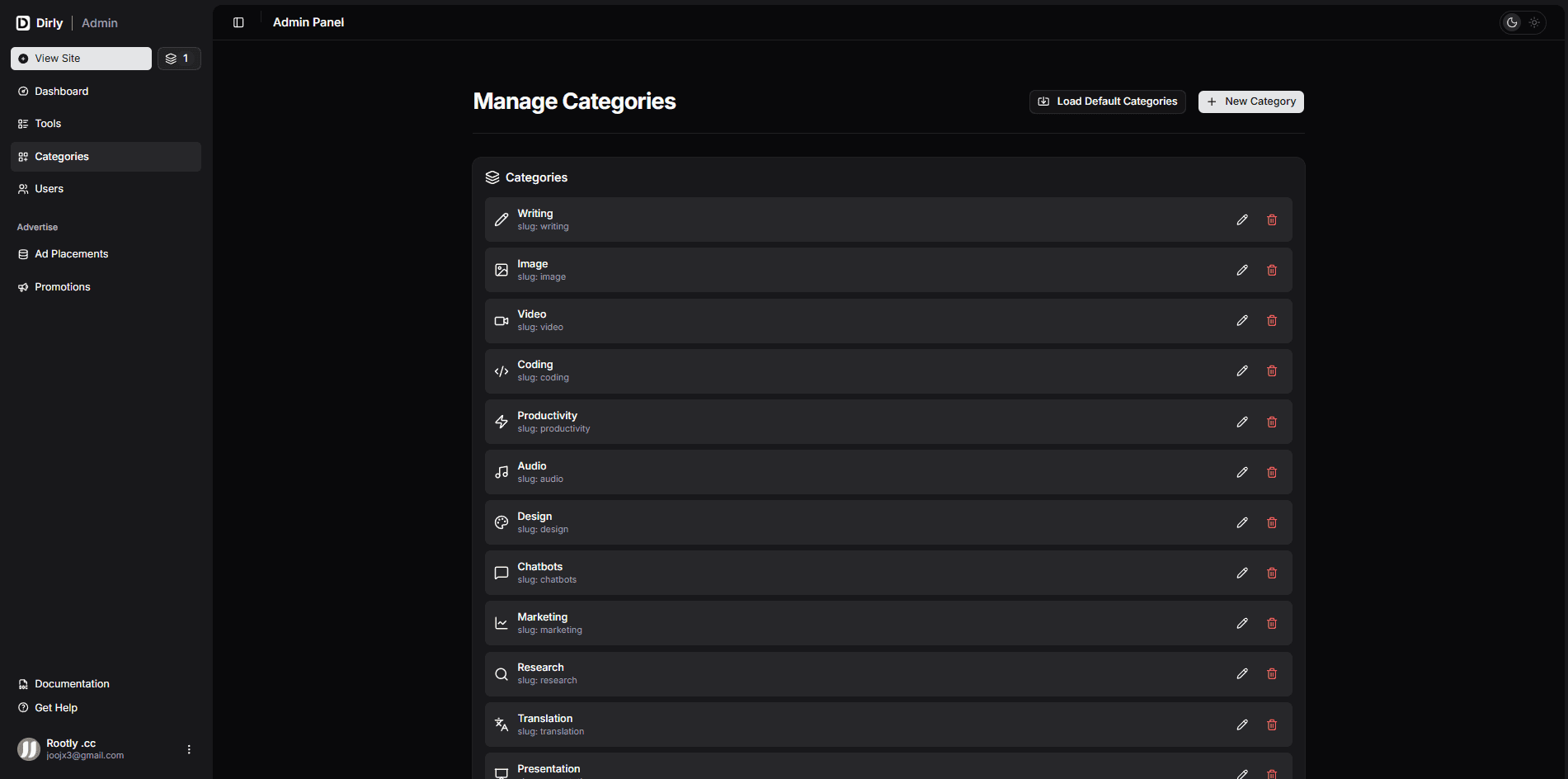
This page provides a full CRUD (Create, Read, Update, Delete) interface for categories, along with a convenient Load Default Categories button to quickly populate the directory with common AI tool categories.
Key features:
- List all categories – Displays each category with its name, slug, and icon (if set).
- Create new categories – Form with name, slug, and optional icon.
- Edit existing categories – Update any category’s details.
- Delete categories – Remove categories (with confirmation).
- Seed default categories – Adds a predefined set of categories (e.g., Writing, Image, Coding, etc.) if none exist.
- Real‑time updates – All changes are immediately reflected via Convex.
Page Components
Header Actions
At the top of the page, two buttons are available:
- Load Default Categories – Inserts a set of default categories (e.g., Writing, Image, Coding, Marketing, etc.) if they are not already present. This is useful for quickly setting up the directory after installation. The button shows a loading state while seeding.
- New Category – Opens a dialog to create a new category.
Category List
Each category is displayed as a card-like row containing:
- Icon – A Lucide icon (or a fallback
Layersicon) if specified. - Name – The display name of the category.
- Slug – The URL‑friendly identifier (e.g.,
writing). - Edit button – Pencil icon, opens the edit dialog.
- Delete button – Trash icon, opens a confirmation dialog.
If no categories exist yet, a placeholder message appears.
Create / Edit Dialog
The same dialog is used for both creating and editing categories. Fields include:
| Field | Required | Description |
|---|---|---|
| Name | Yes | Display name (e.g., “Writing”). |
| Slug | Yes | URL‑friendly version (e.g., “writing”). Automatically generated from the name when creating a new category, but can be overridden. |
| Icon | No | Name of a Lucide icon (e.g., Pencil, Image, Code2). If left empty, a default Layers icon is used. |
A link to the Lucide icons library is provided for reference.
Delete Confirmation
When deleting a category, a confirmation dialog warns that the action is permanent and that tools in that category will need to be reassigned. This helps prevent accidental data loss.
Default Categories
The Load Default Categories button runs a Convex mutation (api.tools.seedDefaultCategories) that inserts the following categories if they do not already exist:
| Name | Slug | Suggested Icon |
|---|---|---|
| Writing | writing | Pencil |
| Image | image | Image |
| Coding | coding | Code2 |
| Marketing | marketing | Megaphone |
| Video | video | Film |
| Audio | audio | Music |
| Productivity | productivity | CheckSquare |
| SEO | seo | Search |
| Business | business | Briefcase |
| Design | design | Palette |
The exact set of default categories may vary based on your seed implementation. You can modify the seed function to include your own defaults.
Technical Details
- Data source: Convex query –
api.tools.getCategories(returns all categories, sorted by name or creation order). - Mutations:
api.tools.createCategory– Creates a new category with the provided name, slug, and icon.api.tools.updateCategory– Updates an existing category.api.tools.deleteCategory– Deletes a category (fails if it is still referenced by tools? depends on Convex schema).api.tools.seedDefaultCategories– Inserts default categories if they do not exist.
- Slug generation: When creating a new category, the slug is automatically derived from the name (lowercase, spaces replaced with hyphens, special characters removed). It can be edited manually if needed.
- Icon handling: Icons are rendered using a
<DynamicIcon>component that resolves Lucide icon names. If an invalid icon name is provided, it falls back to the defaultLayersicon. - Access control: Only users with
role === "admin"in theuserstable can access this page.
Usage Tips
- Use the Load Default Categories button immediately after installation to have a basic category structure.
- When creating a new category, choose a slug that is unique and descriptive, as it will be used in URLs (e.g.,
/tools?category=your-slug). - Icons are optional but improve visual recognition. Pick icons from the Lucide icon set .
- If you delete a category that is used by tools, you may need to reassign those tools to another category to avoid display issues. Consider updating tools beforehand or implementing a reassignment workflow in the future.
Troubleshooting
| Problem | Solution |
|---|---|
| Cannot create category – slug already exists | Choose a different slug or edit the existing category to use a different slug. |
| Default categories do not appear after seeding | Check the Convex dashboard for errors. Ensure the seed mutation is defined and that the categories do not already exist. |
| Icon does not show | Verify that the icon name matches a Lucide icon exactly (case‑sensitive). Example: Pencil, not pencil. |
| Delete button is disabled | Categories may have tools referencing them; you may need to delete or reassign those tools first, depending on your schema constraints. |
Conclusion
The Manage Categories page gives admins full control over the directory’s taxonomy. With simple forms for creating and editing categories, a convenient default seeding option, and real‑time updates, you can keep your tool categories organized and user‑friendly.
For more information on how categories are used in the frontend, see the Tools Listing section.