Manage Placements
The Manage Placements page allows administrators to configure ad placement options that users can purchase to promote their tools. Each placement represents a specific location and type of advertisement (e.g., Top Banner Ad, Catalog Card) with a monthly price and a Stripe Price ID for payment processing.
Access this page by navigating to /admin/placements after logging in with an account that has the admin role.
Overview
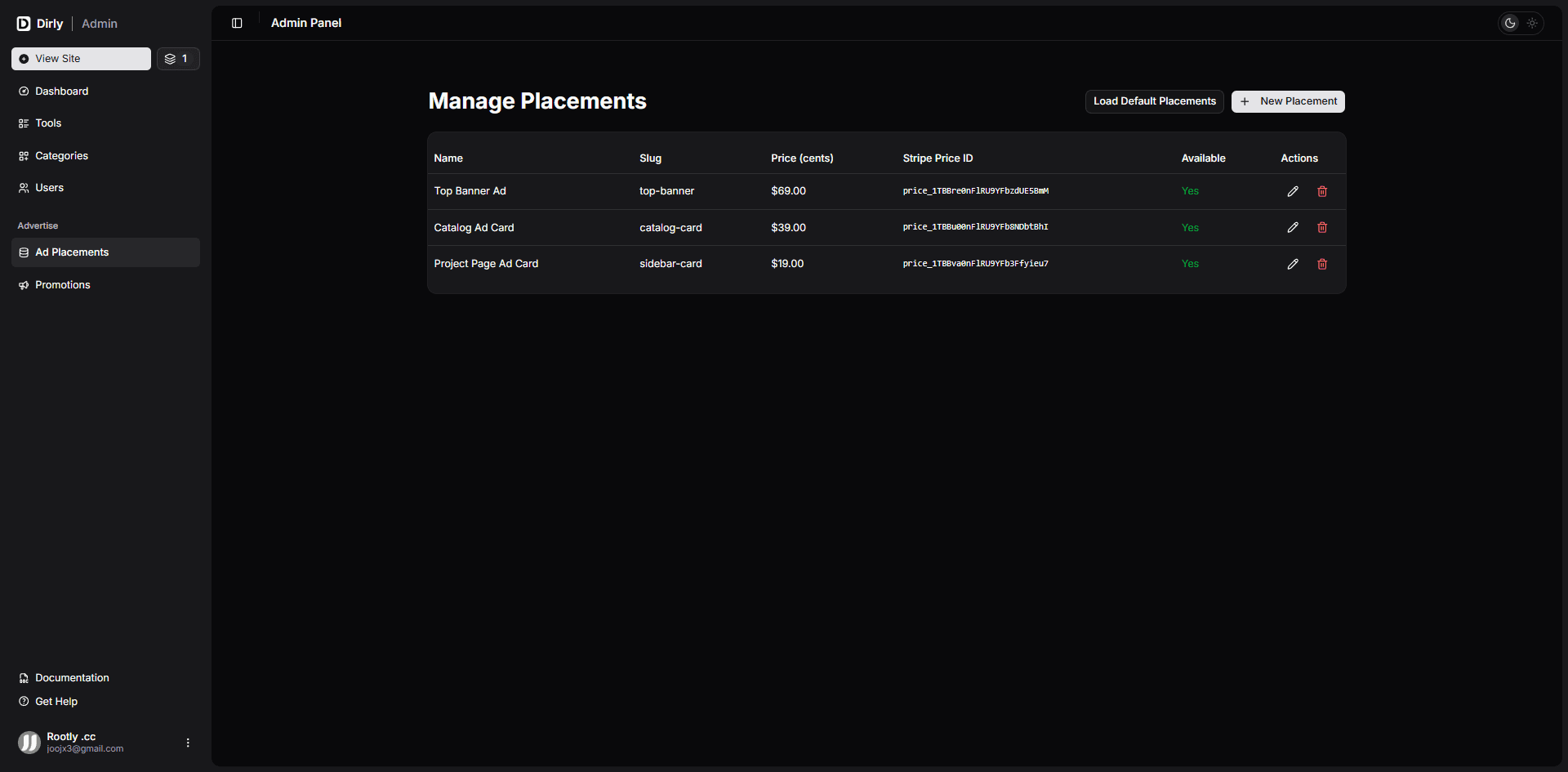
This page provides a full CRUD interface for ad placements, including a convenient Load Default Placements button to quickly set up standard placements. Key features:
- Table view – Lists all placements with name, slug, price, Stripe Price ID, and availability.
- Create placement – Add a new placement with a name, slug, description, price, Stripe Price ID, and availability toggle.
- Edit placement – Update any existing placement’s details.
- Delete placement – Remove a placement (with confirmation).
- Seed default placements – Automatically creates a predefined set of placements (Top Banner, Catalog Card, Project Page Ad Card) if they do not already exist.
- Real‑time updates – All changes are immediately reflected via Convex.
Placements are one‑time purchases that activate a 30‑day ad campaign. The price is set in cents (e.g., 6900 = $69). The Stripe Price ID must correspond to a one‑time product in your Stripe account.
Page Components
Header Actions
At the top of the page, two buttons are available:
- Load Default Placements – Inserts the three standard placements (Top Banner Ad, Catalog Ad Card, Project Page Ad Card) with sensible defaults if they are not already present. The button shows a loading state while seeding.
- New Placement – Opens a dialog to create a new ad placement.
Placements Table
The table displays the following columns:
| Column | Description |
|---|---|
| Name | Display name of the placement (e.g., “Top Banner Ad”). |
| Slug | URL‑friendly identifier (e.g., top-banner). |
| Price (cents) | Price in US dollars, shown formatted (e.g., $69.00). |
| Stripe Price ID | The Stripe Price ID (starts with price_) that links this placement to a Stripe product. |
| Available | Yes / No indicator – determines whether users can purchase this placement. |
| Actions | Edit (pencil) and delete (trash) icons. |
Create / Edit Dialog
The same dialog is used for both creating and editing placements. Fields include:
| Field | Required | Description |
|---|---|---|
| Name | Yes | Display name (e.g., “Top Banner Ad”). |
| Slug | Yes | Unique identifier (used internally, e.g., top-banner). |
| Description | Yes | Brief description shown to users when purchasing. |
| Price Monthly (in cents) | Yes | Price in cents (e.g., 6900 for $69). This is a one‑time charge. |
| Stripe Price ID | Yes | The Stripe Price ID of a one‑time product in your Stripe account. |
| Available | Yes | Toggle to enable/disable purchase of this placement. |
The Stripe Price ID must correspond to a one‑time product in Stripe. Do not use subscription price IDs, as Dirly handles ad campaigns as one‑time payments that activate a 30‑day campaign.
Delete Confirmation
When deleting a placement, a confirmation dialog warns that existing campaigns using this placement will remain active, but new purchases will no longer be possible if the placement is set unavailable. Deleting is irreversible.
Default Placements
The Load Default Placements button runs a Convex mutation (api.ad.seedPlacements) that inserts the following placements if they do not already exist:
| Name | Slug | Description | Price (cents) | Example Stripe Price ID |
|---|---|---|---|---|
| Top Banner Ad | top-banner | Horizontal banner below the site header on every page | 6900 | price_1TBBre0nFlRU9YFbzdUE5BmM |
| Catalog Ad Card | catalog-card | Promoted card mixed into the project catalog grid | 3900 | price_1TBBu00nFlRU9YFb8NDbtBhI |
| Project Page Ad Card | sidebar-card | Promoted card in the sidebar of project detail pages | 1900 | price_1TBBva0nFlRU9YFb3Ffyieu7 |
The seed function will skip placements that already exist (matching by slug), so you can safely run it multiple times.
Technical Details
- Data source: Convex query –
api.ad.getPlacements(returns all ad placements). - Mutations:
api.ad.createPlacement– Creates a new placement.api.ad.updatePlacement– Updates an existing placement.api.ad.deletePlacement– Deletes a placement.api.ad.seedPlacements– Inserts default placements if missing.
- Pricing: Prices are stored in cents (e.g.,
6900for $69). The frontend displays them formatted withtoFixed(2). - Access control: Only users with
role === "admin"can view this page. The component checkscurrentUser.roleand denies access if not admin.
Usage Tips
- Use the Load Default Placements button immediately after installation to have a starting set of placements.
- When creating a new placement, ensure the slug is unique and descriptive (e.g.,
sidebar-banner,popup-ad). - The Stripe Price ID must exist in your Stripe account and be a one‑time price. You can create these in Stripe Dashboard under Products.
- To temporarily disable a placement without deleting it, set Available to
false. Existing campaigns will remain, but users will not see it in the purchase flow. - After creating or updating a placement, the changes are immediate. No need to restart the server.
Troubleshooting
| Problem | Solution |
|---|---|
| Default placements not loading | Check that the seedPlacements mutation is defined in your Convex schema. Run it manually from the Convex dashboard if needed. |
| Placement cannot be purchased | Verify that available is set to true and that the Stripe Price ID is correct and exists in Stripe. |
| Price shows incorrectly | Ensure priceMonthly is stored in cents (e.g., 6900 for $69). The table uses toFixed(2) for display. |
| Stripe webhook not activating campaign | Check that the webhook listens for payment_intent.succeeded and that the stripePriceId in the placement matches the one used in the payment. |
| Cannot delete placement because it’s referenced | If your database has foreign key constraints, you may need to first delete or reassign campaigns that use this placement. The current mutation may fail silently; check Convex logs. |
Conclusion
The Manage Placements page gives administrators full control over available ad placements in Dirly. With a simple table interface, create/edit forms, and a default seeding option, you can quickly configure and manage how users can promote their tools. Combined with Stripe integration and webhook handling, the system automatically activates campaigns upon successful payment.
For more information about the advertising flow and how campaigns work, see the Ad Campaigns section.