Manage Campaigns
The Manage Campaigns page allows administrators to view, monitor, and manually create ad campaigns in Dirly. Campaigns represent active advertisements purchased by users to promote their tools. Admins can change campaign status, view creative details, and even create campaigns directly for testing or special offers.
Access this page by navigating to /admin/campaigns after logging in with an account that has the admin role.
Overview
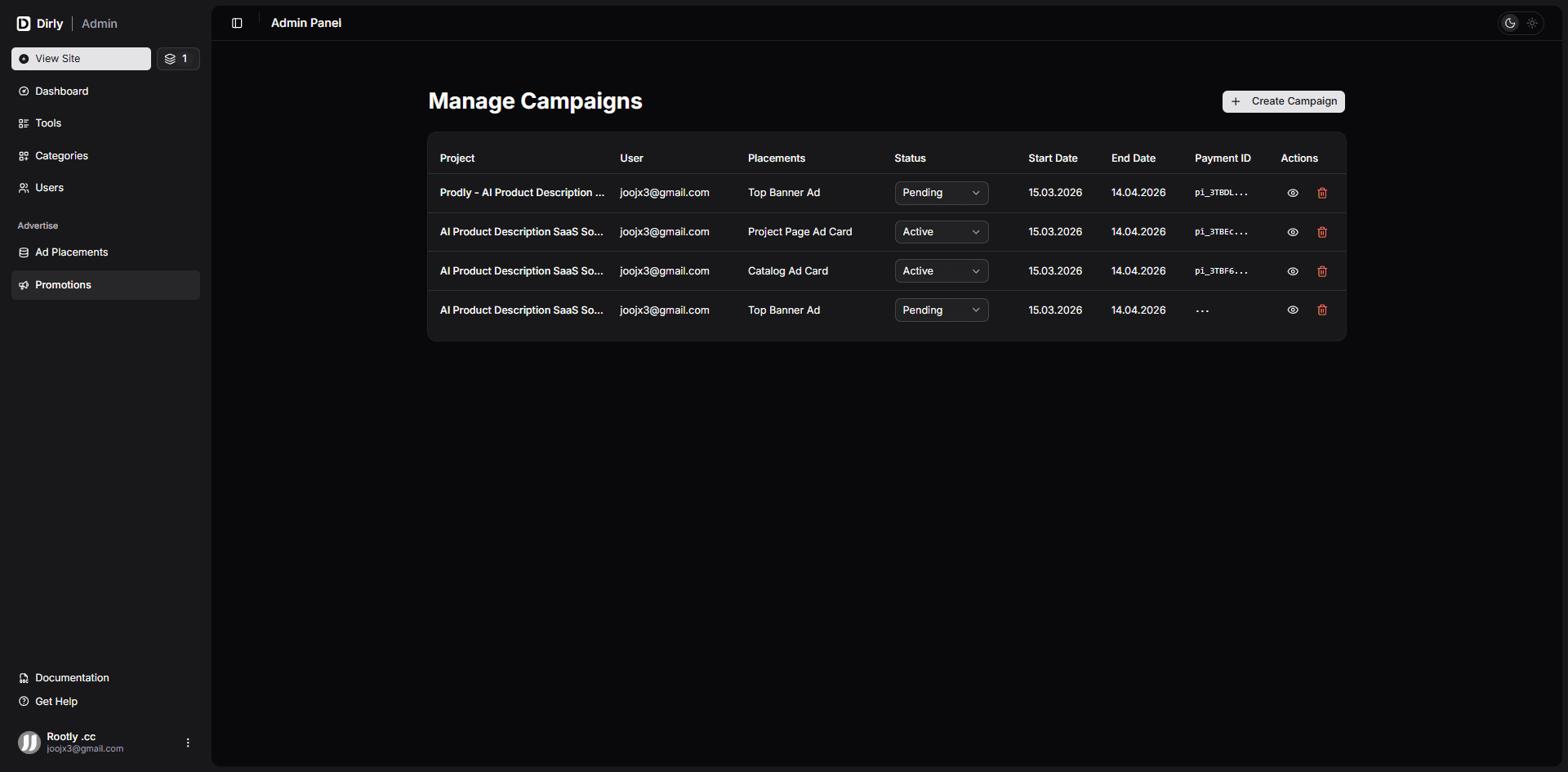
Ad campaigns are automatically created when a user completes a payment for an ad placement (via Stripe webhook). This page gives you full visibility into all campaigns, their status, and creative assets. Key features:
- Table view – Lists all campaigns with key metadata.
- Status management – Change a campaign’s status (Pending, Active, Expired, Cancelled) via dropdown.
- View details – Inspect campaign creative (logo, description, destination URL, etc.).
- Delete campaign – Remove a campaign permanently.
- Manual campaign creation – Admins can create campaigns without requiring a Stripe payment (useful for testing, giveaways, or manual overrides).
Campaign Lifecycle
A campaign progresses through these statuses:
| Status | Description |
|---|---|
| Pending | Initial state after purchase; not yet displayed. Automatically switches to Active when the webhook processes. |
| Active | Campaign is currently being displayed on the site (within the active date range). |
| Expired | Campaign has passed its end date. No longer displayed. |
| Cancelled | Manually set by admin; campaign is hidden. |
- Start Date – When the campaign was activated (usually the payment date).
- End Date – Start date + 30 days (by default). Campaigns last 30 days from activation.
The webhook that handles payment_intent.succeeded creates the campaign with status active and sets start/end dates accordingly. If you manually create a campaign, it starts immediately.
Page Components
Campaigns Table
The table displays the following columns:
| Column | Description |
|---|---|
| Project | The name of the tool/project being promoted (from creative). |
| User | The user who purchased the campaign (email or Clerk ID). |
| Placements | Comma-separated list of ad placements purchased (e.g., Top Banner Ad, Catalog Card). |
| Status | Dropdown to change status (Pending, Active, Expired, Cancelled). |
| Start Date | Date when the campaign becomes active. |
| End Date | Date when the campaign expires. |
| Payment ID | Stripe Payment Intent ID (truncated). |
| Actions | Eye icon (view details) and trash icon (delete). |
View Details Dialog
Clicking the eye icon opens a dialog with full campaign creative details:
- Project Name
- Destination URL (clickable)
- Short Description
- CTA Button Text
- Logo (preview image)
- Status (badge)
- Stripe Payment Intent ID
- Created At (timestamp)
Delete Confirmation
Deleting a campaign is permanent. A confirmation dialog prevents accidental removal. Deleted campaigns cannot be recovered.
Create Campaign Button
The Create Campaign button opens a dialog that allows admins to manually create a new campaign without requiring a Stripe payment.
Manually created campaigns are immediately active and will be displayed on the site. Use this feature carefully – it bypasses payment validation.
Manual Campaign Form Fields
| Field | Required | Description |
|---|---|---|
| Placements | Yes | Check at least one placement. The campaign will appear in all selected locations. |
| Logo | Yes | Can be a URL or an uploaded image (max 2MB). |
| Project Name | Yes | Name of the tool/project. |
| Short Description | Yes | Brief description (max 200 characters). |
| Destination URL | Yes | Link users will be sent to when clicking the ad. |
| CTA Button Text | No | Custom button text (max 20 characters). Default: “Learn More”. |
After submission, the campaign is created in the database with status active and start/end dates set to current date and +30 days. A success toast confirms creation.
Technical Details
- Data sources:
api.ad.getAllCampaigns– List of all campaigns.api.ad.getPlacements– Used for displaying placement names and in the create form.api.tools.getAllUsers– Maps user IDs to emails for display.
- Mutations:
api.ad.updateCampaignStatus– Change status.api.ad.deleteCampaign– Delete a campaign.api.ad.adminCreateCampaign– Create a campaign manually.
- Image upload: The logo can be uploaded as a file; it is converted to a data URL and stored directly in the
creativeobject. (This may cause large database entries; consider storing in cloud storage for production.) - Access control: Only users with
role === "admin"can view this page.
Usage Tips
- Use the status dropdown to manually expire or cancel campaigns (e.g., if content is inappropriate).
- View details to inspect creative assets before approving (if you have a moderation workflow).
- Manual campaign creation is useful for testing ad rendering or giving free promotional spots.
- Keep an eye on campaigns nearing expiration – you can manually extend them by updating the
endDatevia database if needed (not yet available in UI).
Troubleshooting
| Problem | Solution |
|---|---|
| Campaign not appearing after purchase | Check Stripe webhook logs. Ensure payment_intent.succeeded event was received and processed. Verify that the stripePriceId in the placement matches the one used in the payment. |
| Campaign shows as pending after payment | If your webhook uses checkout.session.completed, you may need to adjust. Dirly uses payment_intent.succeeded – ensure your webhook is configured for that event. |
| Cannot create campaign – placements missing | Ensure you have at least one placement in the adPlacements table. Use Load Default Placements on the Manage Placements page. |
| Image upload fails | Check file size (2MB) and type (image/*). Large files may cause performance issues; consider using a CDN for production. |
| Campaign not displaying on site | Verify status is active, start date is today or earlier, end date is in the future, and placement is still available (available: true). |
Conclusion
The Manage Campaigns page gives administrators full oversight of ad campaigns in Dirly. With status controls, detailed views, and the ability to create campaigns manually, you can efficiently manage promotions and handle edge cases. Combined with automated Stripe integration, the system provides a robust advertising platform for your users.
For more information about the advertising workflow and how users purchase placements, see the Ad Placements section.